How Can I Keep My Gaming PC Reachable Remotely Without Wasting Power?
What actually makes a remote gaming session feel bad? Is it the connection? The controls? Or is it the constant worry about your power bill if you leave your PC on all day? You want your powerful gaming rig ready to go from anywhere, but you don’t want it burning electricity 24/7. This is the remote gamer’s dilemma: balancing instant access with the ongoing energy costs of a high-performance machine. Think of your gaming PC as a powerful, loyal guard dog. You want it ready to protect your digital assets—or let you game—at a moment’s notice, but you don’t want it constantly barking and consuming energy when there’s no threat. The goal is to train it to wake on command, efficiently and reliably, by mastering its power states and setting up Wake-on-LAN (WoL).
The Remote Gamer’s Dilemma: Power vs. Pounce
Ever wished you could just jump into your game rig from a coffee shop, or finish that creative project from your laptop on vacation? What if you could, without leaving your powerful machine burning electricity all day? You’re miles away, the craving hits for a quick session of your favorite game, or you remember a crucial file you need for work. Your PC is snoozing, seemingly out of reach, and the idea of leaving it on 24/7 just to be ready feels like a waste. This is the remote gamer’s dilemma: balancing instant access with the ongoing energy costs of a high-performance machine. Think of your gaming PC as a powerful, loyal guard dog. You want it ready to protect your digital assets (or let you game) at a moment’s notice, but you don’t want it constantly barking and consuming energy when there’s no threat. The goal is to train it to wake on command, efficiently and reliably.
Why Bother with Remote Access for Your Gaming PC?
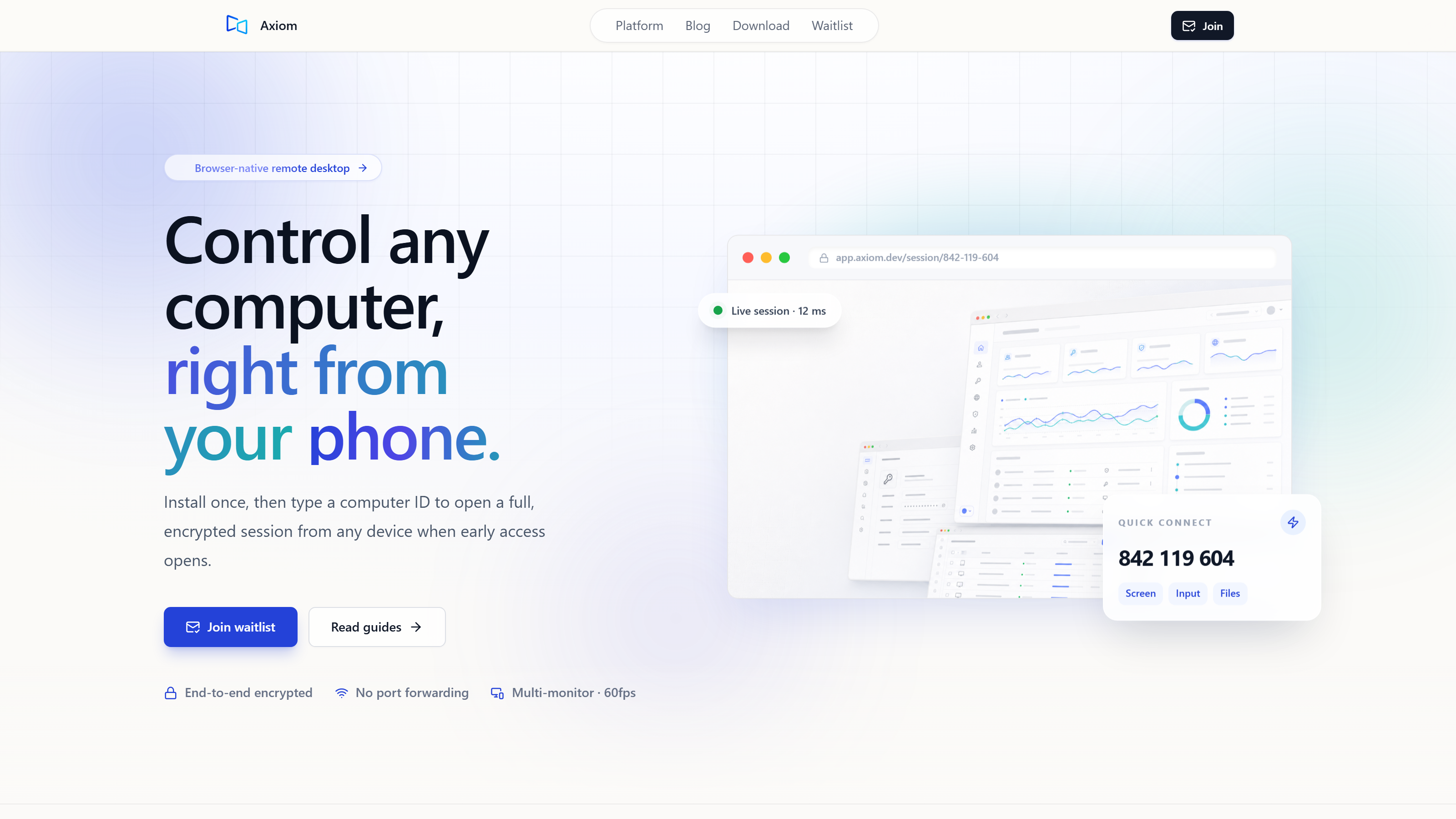
Remote access to your gaming PC extends far beyond just playing games. It’s invaluable for remote work, accessing large files, offloading intensive tasks like video rendering or 3D modeling, or even troubleshooting your streaming setup while you’re away from home. The convenience of tapping into your powerful machine from any location is a significant benefit. Once your PC is awake, a tool like Axiom simplifies this connection, letting you access your Windows PC from any browser with just an ID and password, no port forwarding needed. This shows how you can get to your machine from anywhere, whether that’s for work, play, or just checking on things.
Understanding PC Power States: Sleep, Hibernate, and Off
Modern PCs offer several power states, each with different power consumption and wake-up times. The most common are S3 (Suspend-to-RAM, often called ‘Sleep’), S0ix (Modern Standby), Hibernate, and full shutdown. S3 puts most components into a very low-power state, keeping just enough power to RAM to retain your session; it typically consumes very little, often under 5W. S0ix, or Modern Standby, keeps more components active for faster wake times and background tasks, which can lead to higher power use than S3, though still far less than when fully active. Hibernate saves your entire system state to your hard drive and then powers down completely, consuming zero watts. A full shutdown, of course, means the PC is completely off.
For remote access, S3 is often ideal. It uses minimal power and allows for Wake-on-LAN (WoL) to bring it back to full power relatively quickly. S0ix offers a faster wake, which might seem appealing, but its higher background activity can sometimes interfere with consistent WoL functionality or consume more power than desired. Hibernate uses no power, but the wake-up process is much slower, and it’s generally not compatible with WoL, making it unsuitable for on-demand remote access. A fully off PC requires physical intervention to boot, or a scheduled boot from BIOS, which is rarely practical for spontaneous remote needs. For balancing power savings with remote accessibility, S3 (classic sleep) is frequently the sweet spot for WoL compatibility and low power consumption. This shows how choosing the right power state is crucial for getting your PC ready when you need it, without keeping it fully awake all the time.
How Does Wake-on-LAN (WoL) Work, and Why Is It Your Best Friend?
Wake-on-LAN (WoL) is a network standard that allows a computer to be turned on or woken up by a network message. This message is often called a ‘magic packet’ because it contains the MAC address of the target network adapter, allowing it to be specifically addressed even when the PC is in a low-power state. WoL is the key to having your PC ‘wake on command’ – much like our guard dog responding to a specific whistle, your PC hears its unique signal and springs to life, ready for you to connect.
Setting Up Wake-on-LAN
- Enable in BIOS/UEFI: Access your PC’s BIOS or UEFI settings during startup (usually by pressing Del, F2, F10, or F12). Look for a ‘Power Management’, ‘Advanced’, or ‘ACPI Settings’ section. Find an option like ‘Wake on LAN’, ‘PCIe/PCI Devices Power On’, or ‘Power On By PCI-E/PCI’ and enable it. Save your changes and exit.
- Configure in Windows: Open Device Manager (right-click Start, select Device Manager). Expand ‘Network adapters’, right-click on your Ethernet adapter, and select ‘Properties’. Go to the ‘Power Management’ tab. Check ‘Allow this device to wake the computer’ and ‘Only allow a magic packet to wake the computer’. Some adapters might have an ‘Advanced’ tab with a ‘Wake on Magic Packet’ option that also needs to be enabled.
- Router Configuration (Sometimes): For WoL to work from outside your local network, your router sometimes needs specific configurations. This might involve setting a static IP address for your PC and creating an ARP table entry to ensure the router knows where to send the magic packet. However, remember that Axiom’s relay bypasses router complexities for the remote session itself, but WoL is a separate mechanism solely for waking the PC.
- Testing WoL: First, test WoL from another device on your local network using a free WoL utility or mobile app. Once that works, attempt a remote test from a mobile app or another PC on a different network (e.g., using your phone’s mobile data).
This shows how WoL bridges the gap between power saving and instant availability, making your powerful rig truly responsive.
Minimizing Your PC’s Power Footprint While Active
Even when awake, your PC doesn’t need to be a power hog. In Windows, you can adjust your power plan settings. While ‘High Performance’ delivers maximum power, ‘Balanced’ can significantly reduce consumption when your PC is idle by scaling CPU frequencies and other components down. Consider creating a custom plan that prioritizes energy efficiency during non-gaming remote sessions. If your GPU control panel allows, you can set your monitor’s refresh rate to a lower Hz when the PC is idle or being accessed remotely, further reducing GPU load and power draw. Ensure your GPU drivers are up to date and that the GPU correctly idles when not under heavy load. Most modern GPUs are very efficient at power scaling.
Not only does optimizing power settings save money, but it also reduces heat and component wear, potentially extending the life of your hardware. Consider the power cost: a typical gaming PC might idle at 100-200W when fully on but not actively gaming. In contrast, in S3 sleep, it consumes less than 5W. Over a year, if you keep your PC on for 16 hours a day instead of sleeping, that’s a difference of roughly 150W * 16 hours/day * 365 days/year = 876 kWh. At an average electricity rate of $0.15/kWh, that’s over $130 in annual savings just by letting your PC sleep when not in use. This clearly shows how small changes add up.
The Axiom Advantage: Dependable Remote Access Once Awake
Once your PC is awake, the next step is connecting to it. This is where Axiom steps in to provide a smooth, dependable remote desktop experience. Install Axiom once on your Windows PC, and it will provide a short numeric connect ID. You can then connect from any modern browser by entering that ID and your access password; no app install is needed on the connecting device. All sessions are encrypted. No port forwarding or router configuration is ever required for the Axiom connection itself. Axiom establishes a direct connection between devices when networks allow, with automatic fallback to Axiom’s relay servers when a network blocks the direct path—common in strict Wi-Fi environments, hotels, campuses, or with CGNAT. For gaming, Axiom’s gaming mode targets smooth video, designed to deliver high frame rates, using the host PC’s graphics card for encoding, a design target achieved with hardware encoding on a discrete-GPU gaming PC. Mouse and keyboard input travels on a dedicated low-latency channel separate from file transfers and other traffic, ensuring responsive control. This proves that once your guard dog is awake, Axiom ensures a fast, secure path for you to interact with it, whether for work or play.
Weighing the Alternatives: Always On vs. Scheduled Wake
Always On
The primary advantage of leaving your PC always on is instant access. There’s no need to configure WoL or wait for it to wake from sleep. But for anyone who isn’t running a dedicated server, the downsides are substantial: a much higher power bill, increased wear and tear on components due to constant operation, and greater heat generation within your home. Leaving your gaming PC always on is only justifiable for very specific use cases where power cost is negligible or constant uptime is absolutely mission-critical. It’s generally not recommended for a personal gaming rig.
Scheduled Wake
Scheduled wake-up times can offer predictable availability with power savings. You can configure your PC’s BIOS or operating system to wake at specific times, ensuring it’s ready when you typically need it. The main drawback is flexibility. It requires knowing precisely when you’ll need your PC, making it less ideal for spontaneous gaming sessions or unexpected work requirements. Scheduled wake is a good option for routine tasks or predictable work schedules, but it falls short for the spontaneous demands of remote gaming.
Train Your Rig, Reclaim Your Freedom
Strategic use of Wake-on-LAN and optimized power states gives you the best of both worlds: the power of your gaming PC on demand, coupled with significant energy savings. By training your powerful PC to wake on command, you’re not only saving energy but also gaining the freedom to access its might whenever, wherever – truly making it a loyal, efficient sentinel at your beck and call. Take the time to set up WoL and optimize your power settings. You’ll be surprised how much control and flexibility you gain over your remote computing experience. Next, we’re diving into optimizing network settings for the smoothest possible remote gaming experience, even on tricky Wi-Fi connections.