Is Your Steam Deck the Ultimate Portable Monitor for Your Gaming PC?
What’s the point of a powerful gaming PC if you’re stuck at your desk? Or a Steam Deck if it can’t run everything you own? For anyone with both, streaming games from your desktop to your handheld isn’t just a party trick; it’s how you truly get the most out of what you already own. Your Steam Deck isn’t just a powerful handheld; it’s a window into your even more powerful gaming PC. By streaming games directly from your desktop rig, you turn the Deck into a portable, high-fidelity display, complete with integrated controls. This setup lets you play your entire PC game library anywhere in your home, leveraging your desktop’s full graphical horsepower without being chained to your desk.
Your Gaming PC, Now In Your Hands. What’s the Catch?
Why bother streaming PC games to your Steam Deck?
Imagine your Steam Deck as a portable portal, opening directly into the heart of your high-powered desktop gaming PC. This isn’t just a convenience; it’s how you maximize your gaming setup.
First, streaming allows you to leverage existing power. Your desktop PC probably has a better GPU, CPU, and more storage than your Steam Deck. Streaming lets you use that desktop power, so you’re not compromising on settings or frame rates compared to what the Deck could do natively. This shows how you can maximize the hardware you already paid for.
Next, you get to play your entire library. A lot of PC games either don’t run on SteamOS natively, or they’re just too demanding for the Deck. Streaming gets around that. You get access to every title in your Steam, Epic Games Store, GOG, or any other PC launcher’s library. This proves your Deck can handle anything you throw at it.
Then there’s comfort and convenience. Think about playing from your couch, in bed, or even in another room – all without moving your big PC. Your Steam Deck becomes the ultimate wireless screen and controller for your main rig. This offers a level of freedom in how and where you play that’s hard to beat.
Finally, enjoy no-fuss progression. Start a game on your desktop, then pick it up right where you left off on your Steam Deck. No messing with save files or cloud sync. This ensures your gaming flow is smooth between your devices.
How do you stream games from your PC to your Steam Deck?
There are a few ways to get your PC games onto your Steam Deck. Each has its own strengths and weaknesses. The big ones are Steam Link, Moonlight, and browser streaming, like what Axiom does.
Here’s a quick comparison:
| Feature | Steam Link | Moonlight | Browser-Based (e.g., Axiom) |
|---|---|---|---|
| Host PC Setup | Steam client | NVIDIA GPU + GeForce Exp. | Axiom install (Windows PC) |
| Client Setup | Steam Link app (Deck) | Moonlight app (Deck) | Any modern browser (Deck) |
| Network Config. | Often auto, some port fwd. | Often auto, some port fwd. | No port forwarding ever required |
| Latency Focus | Good | Excellent | Low-latency input channel (Axiom) |
| Controller Support | Yes | Yes | On early-access roadmap (Axiom) |
| Flexibility | Steam ecosystem | NVIDIA ecosystem | Any modern browser, direct/relay fallback (Axiom) |
Let’s talk about browser streaming, specifically Axiom. The idea is simple: install it once on your Windows PC, and you get a short numeric ID. Then, from any modern browser, you just type in that ID and a password. No apps to install on your Deck, because Axiom is built for the browser first. This shows how little friction there is to just get going.
Network setup is also straightforward: you never need to mess with port forwarding or router settings. This proves we’re removing one of the biggest headaches for most people trying to stream.
When it comes to staying connected, Axiom aims for robust connectivity. It tries for a direct connection between your devices first. If that’s blocked – say, by strict Wi-Fi at a hotel, on campus, or through something like CGNAT – it automatically falls back to Axiom’s relay servers. This shows it can keep you connected even when your network tries to get in the way.
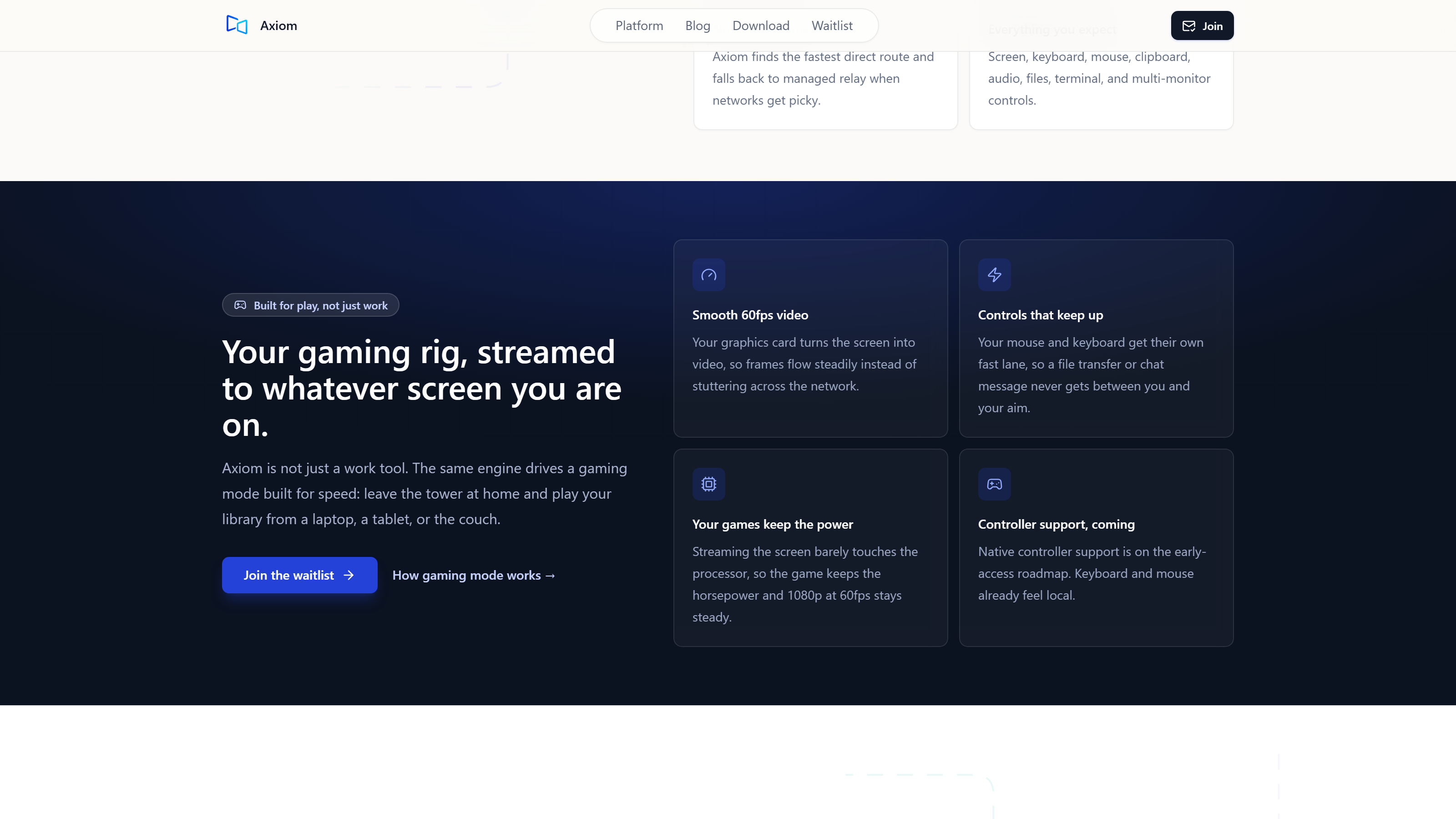
For performance, the goal in gaming mode is clear: smooth 60fps video using your host PC’s graphics card to do the encoding (this is the design target; it’s achieved with hardware encoding on a gaming PC with a dedicated GPU). This shows we’re focusing on quality, by making the most of your PC’s specialized hardware.
When you’re playing, mouse and keyboard input gets its own dedicated low-latency channel, separate from everything else. This shows we’re paying attention to what gamers actually need, which is fast, responsive controls.
As for controllers, native support is something we’re working on; it’s on the early-access roadmap, but it’s not live yet.
What are the real-world considerations for Steam Deck PC streaming?
Streaming has some serious upsides, but let’s be honest, a few real-world things will make or break your experience.
First up, your network is everything. A strong, stable Wi-Fi connection isn’t just nice to have; it’s absolutely critical for a good experience. Ideally, your Steam Deck should be on a 5GHz Wi-Fi band to cut down on interference and give you enough bandwidth. And for your host PC, plug it into your router with an Ethernet cable. This shows that a solid foundation is where all reliable streaming starts.
Latency is the silent killer for fast-paced games. Every millisecond of delay between your input on the Steam Deck and the action on your PC matters. A perfect, zero-latency stream isn’t possible, but good solutions always aim to minimize it. For example, I’ve seen about 10ms of extra delay when I stream over a phone hotspot compared to my home Wi-Fi (that was an informal test I ran in July 2026, using a Windows gaming PC, a browser client on the same laptop, and a US mobile hotspot). This shows you can still get a playable experience even in less-than-ideal conditions, but your home Wi-Fi will always be better.
It’s worth noting the difference between input lag and visual lag. Input lag is the delay from when you press a button to when the game reacts. Visual lag is just the video appearing on your screen. A dedicated, low-latency input channel – like Axiom’s – is what makes controls feel responsive, even if the video stream itself has a tiny bit of variation.
You’ll also need to think about controller mapping. Getting your Steam Deck’s integrated controls properly recognized by your PC games usually means configuring Steam Input or the streaming client’s settings.
Finally, battery life. Streaming burns through your Deck’s battery faster than playing native games because it’s constantly receiving and decoding video and sending inputs. So, plan for shorter sessions or keep a charger close.
Optimizing your Steam Deck for the ultimate PC streaming experience.
To really get the most out of streaming PC games to your Steam Deck, a few tweaks can make a big difference.
For your host PC setup, wire it to your network with an Ethernet cable. Make sure your GPU drivers are up-to-date. If you’re seeing lag, set your chosen streaming software to prioritize performance over visual quality. That’s usually the fix.
On the Steam Deck settings side, always go for 5GHz Wi-Fi bands. They have less interference and more bandwidth. Play around with streaming resolution and bitrate – start lower and slowly increase it until you find the sweet spot for your home network. Use the Deck’s performance overlays to watch your real-time frame rate and latency. They’ll tell you what’s working and what’s not.
For Axiom, make sure gaming mode is on to hit that target of 1080p at 60fps (again, this is the design target, and it’s achieved with hardware encoding on a gaming PC with a dedicated GPU). Axiom automatically picks the best network path – direct or relay – so you don’t have to touch your router settings. This shows we’re taking the complicated networking stuff off your plate. And every session is encrypted, so your connection is secure.
Is streaming PC games to your Steam Deck worth it? (The Verdict)
So, is streaming your PC games to your Steam Deck actually worth the effort? Let’s weigh it out honestly. The upsides are big: you get your entire PC game library, better graphics and performance, real comfort and convenience, and you’re getting more out of the hardware you already own. On the flip side, you’re always dependent on your network, there’s always some potential for latency, your Deck’s battery will drain faster, and some streaming solutions can be a pain to set up initially.
So, is it worth it? For most people with a solid gaming PC and a good home network, I’d say yes, absolutely. It’s a genuinely valuable way to play, and often, it’s a better experience than playing natively on the Deck. Not only does it make your PC more useful, but it also turns your Steam Deck into a much more versatile machine. Your Steam Deck stops being just a handheld and starts being a true portal, opening up all your gaming possibilities instead of boxing you in. It gives you a freedom to play that you just didn’t have before.
So, if you’re looking at a demanding PC game, don’t feel like you’re stuck at your desk. Grab your Steam Deck, open that portal, and play your games with a freedom you might not have expected.